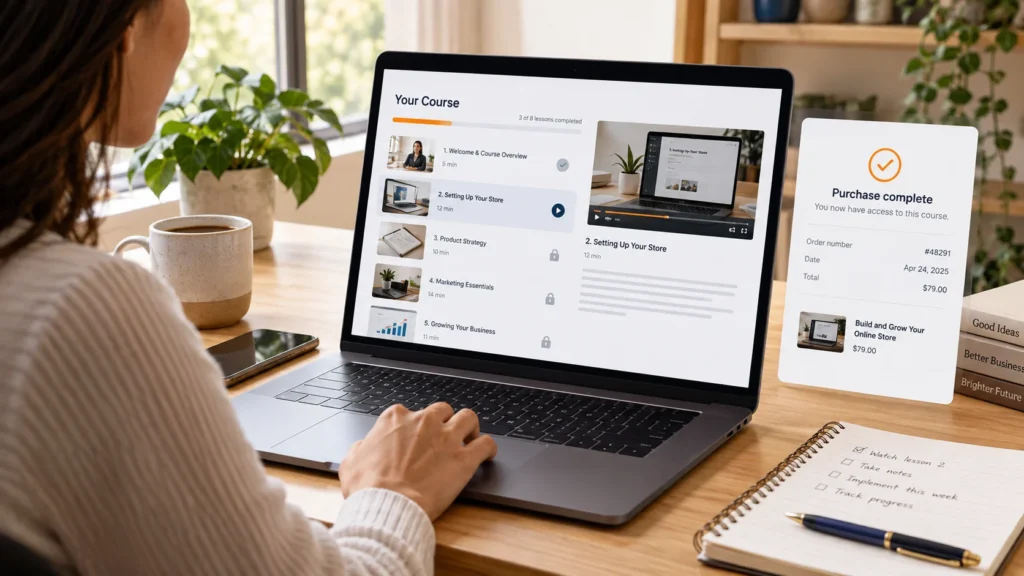
A learner pays for a course, receives an order email and then sees an access-denied message. The payment may be correct while enrollment is wrong. The useful question is where the chain from product purchase to learner account broke.
A course purchase depends on more than a successful checkout. The product must map to the intended course, the integration must recognize the order status, and the learner must sign in to the account that owns the access. Check those relationships before manually enrolling everyone.
Confirm the product-to-course mapping
Open the purchased WooCommerce product and inspect the course or group assignment supplied by the LearnDash integration. Check the actual purchased variation if your setup uses variations or bundles. A similar product title is not evidence of the correct mapping.
Record the product ID, course ID and learner account. If a product grants several courses, verify every intended course and make sure unrelated courses remain restricted. If it grants a group, test the group’s access rules as well.
Check the course enrollment mode
LearnDash supports several enrollment modes, and they serve different payment and access arrangements. Review the official enrollment-mode documentation before combining an external checkout with a course’s own payment controls.
The configuration should give learners one clear purchase route. Conflicting buy buttons, an incorrect external purchase URL or an enrollment mode that does not match the sales flow can produce confusing screens even when the underlying payment works.
Review the order status that grants enrollment
Find the order in WooCommerce and compare its status with the integration’s enrollment settings. Do not assume every installation enrolls at the same status. Product settings, gateway behavior and integration version can all matter.
LearnDash documents enrollment status controls in its WooCommerce integration guide. Use the settings available in your installed version, then verify their effect with a test purchase. A manual change to completed can trigger more than an email, so first reconcile the payment.
Match the learner to the purchasing account
Ask the learner which email they used at checkout and which username they are signing in with. A different email, duplicate account or guest purchase may explain the missing access. Check the order’s associated user, not only the billing name.
For paid courses, establish an intentional account-creation process and explain how to sign in after purchase. Test registration, password setup, order receipt and the course link as one journey. Do not send passwords by email or ask learners to share them with support.
Test access throughout the order lifecycle
| Test case | What to verify |
|---|---|
| New learner, successful payment | Account created and intended course available |
| Existing learner purchases another course | New access added without losing existing progress |
| Unpaid or failed order | Paid access follows the configured payment policy |
| Cancelled or refunded purchase | Access changes match your documented policy and integration settings |
| Repeat order notification | No duplicate enrollment side effects |
Run these cases on staging using test payments. Check the learner’s account and course page directly rather than relying only on an administrator’s enrollment list. Administrator privileges can hide restrictions that an ordinary learner sees.
Handle existing orders deliberately
If you corrected an incorrect product mapping or enrollment setting, do not assume old orders automatically acquire the new relationship. Review the integration’s available retroactive-access tools, take a backup and test a small known set first.
Keep an audit note when manually correcting access: order reference, payment verification, account, course and reason. This makes later refunds and support requests easier to resolve. Avoid deleting learner progress as a shortcut to fixing enrollment.
Trace one order from checkout to the learner
The official LearnDash WooCommerce integration requires customers to create an account during checkout. Check that account creation is part of your intended purchase flow. If you are investigating an old guest order or a custom integration, establish how that order should be connected to a WordPress user before treating it as a normal enrollment case.
- Open one affected order and record its associated user and purchased product. Billing contact details alone do not establish which account owns course access.
- Inspect the purchased product’s course or group assignment. Use identifiers as well as titles, especially when similarly named courses or products exist.
- Open LearnDash LMS > WooCommerce where available in your integration version and review Enrollment Status. Compare the actual order state with the configured Grant or Deny rule.
- Use a separate browser session to sign in as the designated test learner. Open the intended course and one lesson. Check what the learner can actually reach.
- If those checks disagree, investigate that relationship first. Avoid changing payment status, mapping and learner identity in the same attempt.
Record the integration version with your result. If the menu or controls differ, use the documentation for the installed version rather than guessing which setting replaces them.
A useful access trace
Consider a paid order associated with learner account A. The customer signs in using account B and cannot open the course. Correct product mapping will not resolve the identity mismatch. Verify the intended purchaser through your support process, then correct the relationship deliberately. Do not move access based only on an unverified message or ask either person to share a password.
Another example is access that remains after a refund because a LearnDash group also grants the course. Inspect the user’s other access sources before concluding that the refund rule failed. Removing one enrollment does not necessarily remove every legitimate route into a course.
Use an access matrix for changes and support
Download the course-access test matrix. Fill in the configured rule and intended result before testing. It includes new and existing learners, failed payments, refunds, overlapping access and older orders after a mapping correction.
Test full and partial refunds separately if both are offered. Define what your business intends to revoke, then check whether the integration and other access tools support that policy. A spreadsheet row marked successful should describe the learner-side result, not merely an administrator setting that looks correct.
LearnDash documents a retroactive access tool under WooCommerce > Status > Tools. Its purpose is to apply the enrollment configuration to existing purchases. Review the documented scope, take a backup and arrange a controlled verification before running a broad correction. Keep a list of affected orders and confirm access afterward. It is not a reason to overwrite learner progress.
If the order itself is unreliable, use the checkout diagnostic checklist first. If the purchase works and the next problem is a quiz-triggered workflow, see our LearnDash automation walkthrough.
Common questions
Does a WooCommerce receipt guarantee course access?
No. A receipt reports an order event. Access depends on mapping, enrollment rules and the learner account.
Should refunds always remove access?
Define the policy first and configure the integration accordingly. Test full and partial refunds separately if your business offers both.
Build a dependable learner journey
WooCrafters offers LearnDash customization and course-site development. Share your course purchase flow so we can scope the mapping, account and access work before changing your live learning site.
Conceptual editorial image created for WooCrafters; interface shown for illustration.