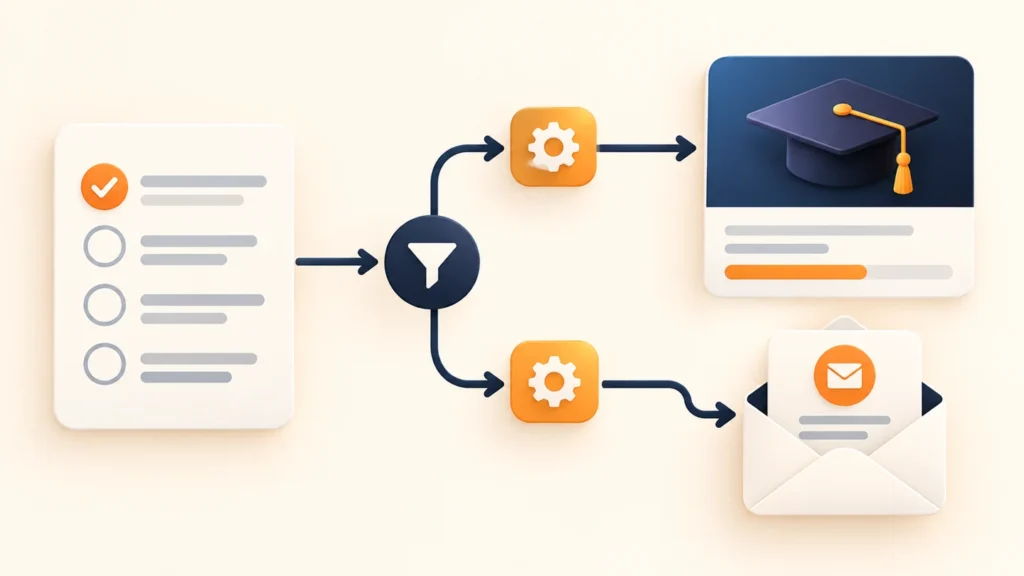
A learner passes your final quiz. What happens next? If someone still has to enroll them in another course and send an email by hand, the learning journey pauses while your team catches up.
LearnDash automation connects that milestone to a useful next step. In this guide, you will build a targeted workflow with Rules for LearnDash: when a learner completes a specific quiz with a score of at least 80 percent, enroll them in the next course and send a follow-up email.
You can build this example with the free plugin. Pro adds more triggers and actions, plus dry-run previews for reviewing supported actions before they make changes.
What is LearnDash automation?
LearnDash automation uses a learner event to start a workflow. Conditions decide whether that event qualifies. Actions then make the change you configured, such as course enrollment or an email.
A useful rule has four parts:
- Event: what starts the rule, such as Quiz completed.
- Audience: which quiz, course, group or learner the rule applies to.
- Conditions: what must be true, such as a score of 80 percent or more.
- Actions: what happens next, such as enrolling the learner in a named course.
Keep each rule focused on one outcome. A name such as “Final quiz: enroll in Advanced Training” is easier to review than “Rule 12”.
When is a rule useful?
Start with a task your team repeats. Course completion can lead to the next course. A quiz result can trigger a targeted follow-up. A lesson completion can prompt an email explaining the next learning step.
For example, a training provider can use one rule for successful quiz attempts and another for learners who need revision. Each rule should target the correct quiz and use a condition that clearly separates the outcomes.
LearnDash already includes quiz email notifications. If a standard quiz notification meets your needs, start there. Rules are useful when you need audience filters, conditions and several ordered actions together.
Before you build your first workflow
You need an active LearnDash installation and the free Rules for LearnDash plugin. LearnDash is sold separately. The current packages require WordPress 6.7 or newer and PHP 8.2 or newer.
Prepare the source quiz and destination course. Use a staging site and a test learner while you configure the rule. Check the destination course’s enrollment settings, especially if another membership or commerce plugin also controls access.
For Pro features, install the separate Pro add-on alongside the free base and activate a valid WooCrafters license. Free features do not need a license key.
How to enroll a learner after a qualifying quiz result
1. Choose the quiz event
Open Rules for LearnDash and create a rule. Give it a descriptive name, choose Quiz completed and keep the rule in Draft while you prepare it.
2. Target the right quiz
In the audience section, search for the final quiz by title and select it. You can choose one item, several items or All. For this example, select only the quiz that should unlock the next course.
Audience choices filter the event. They do not select the course that an enrollment action will use. You will choose that destination separately.
3. Set the score condition
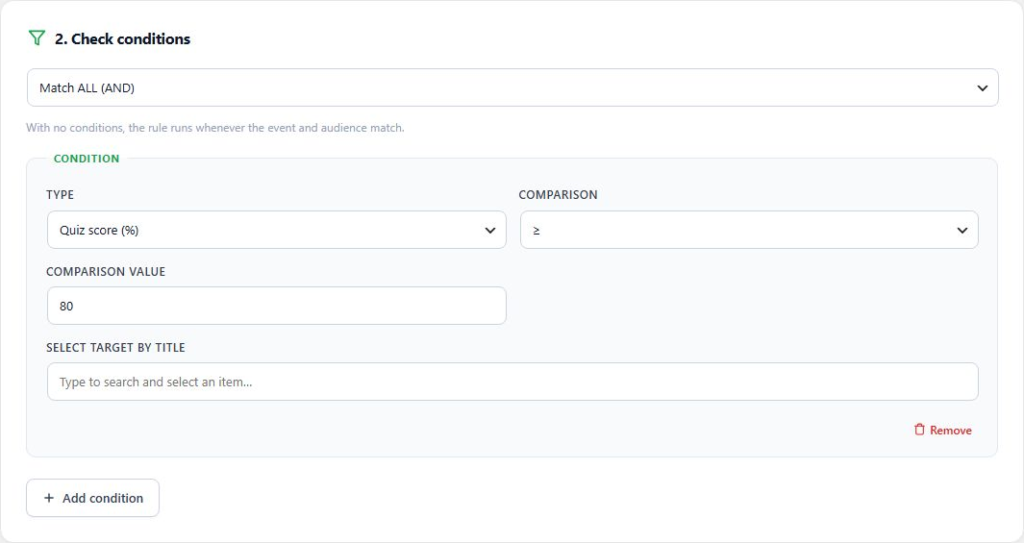
Add a Quiz score condition. Choose the greater-than-or-equal comparison and enter 80. If the workflow must also follow the quiz’s own pass setting, add Quiz passed = 1 and combine the checks with AND.
AND means every condition must match. OR means at least one can match. Use AND for a rule that requires both a minimum score and a passed result.
4. Add enrollment and email actions
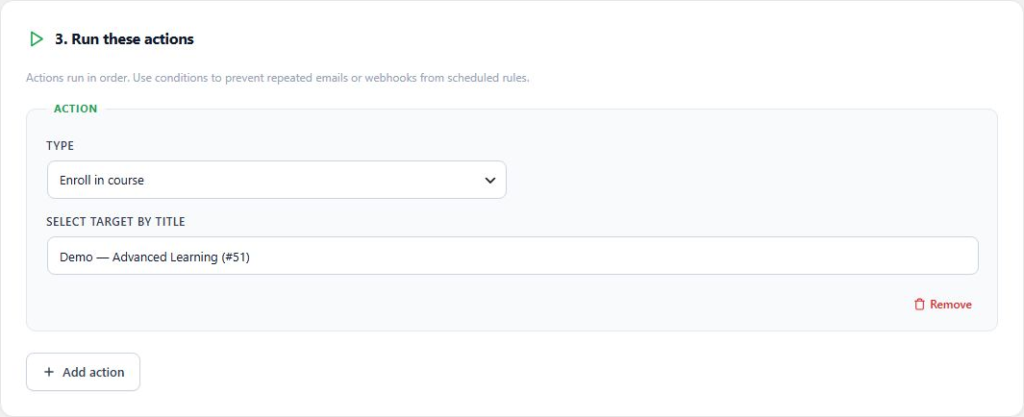
Add Enroll in course and select the destination course by title. Add Email the learner as the next action. Write a short subject and message that explain what the learner can do next, with a link to the course.
Actions run in their configured order. Keep the message accurate: tell learners which course is available and where to start. Avoid sending several overlapping emails from different rules or other notification plugins.
5. Test the result before enabling the rule
Review the event, audience and conditions, then test on staging with a controlled learner. With licensed Pro, enable dry-run in Settings & License to inspect supported actions without applying their changes. Dry-run is an engine setting, so review your other active rules before changing it.
Without Pro, perform a controlled live test on staging. For either edition, test a qualifying attempt and a non-qualifying attempt. Check the learner’s actual course access and email delivery as well as the Activity log.
When the result is correct, disable dry-run if you used it, save the setting and activate the rule. Confirm one controlled live result. Email uses your WordPress mail setup; a logged handoff does not guarantee inbox delivery.
Free or Pro: which edition do you need?
The free plugin includes core LearnDash completion and course-access triggers, named audience filters, AND / OR conditions, course enrollment actions and learner email. It is a useful starting point for the quiz-to-course example above.
Choose Pro when the workflow needs account, group or scheduled events; group or learner-role changes; administrator or group-leader emails; HTTPS webhooks; registered developer actions; or dry-run previews.
Pro is an add-on, so keep both plugins active when using it. The free base does not need a key. Pro execution requires a valid WooCrafters license. You can compare the Free and Pro plans before choosing a site count and license term.
Keep your automations easy to maintain
- Limit the audience. Select the specific quiz or course when a rule should only apply there.
- Check repeated events. Learners may attempt a quiz again. Decide whether another email or action is appropriate.
- Review overlapping rules. Priorities and stop-processing settings affect which rules run. They do not undo actions that already happened.
- Test mail delivery. Use a working mail transport and check the recipient’s inbox and spam folder.
- Inspect failures. A later failed action does not roll back earlier successful actions.
- Protect learner data. Send webhook data only to an authorized receiver and explain relevant transfers in your privacy information.
Scheduled Pro rules evaluate users repeatedly. They are not an exact-time delivery service or an automatic one-time campaign. Add conditions that prevent unwanted repeated actions, and check WordPress cron if evaluations are delayed.
Build one useful workflow first
Start with a single learner milestone and a clear next step. A narrowly targeted quiz rule is easier to test, explain and support than a large collection of overlapping automations.
Explore Rules for LearnDash Free and Pro, or follow the illustrated setup guide for installation, licensing, every trigger and action, and troubleshooting.
Rules for LearnDash is an independent WooCrafters integration. It is not an official LearnDash product.