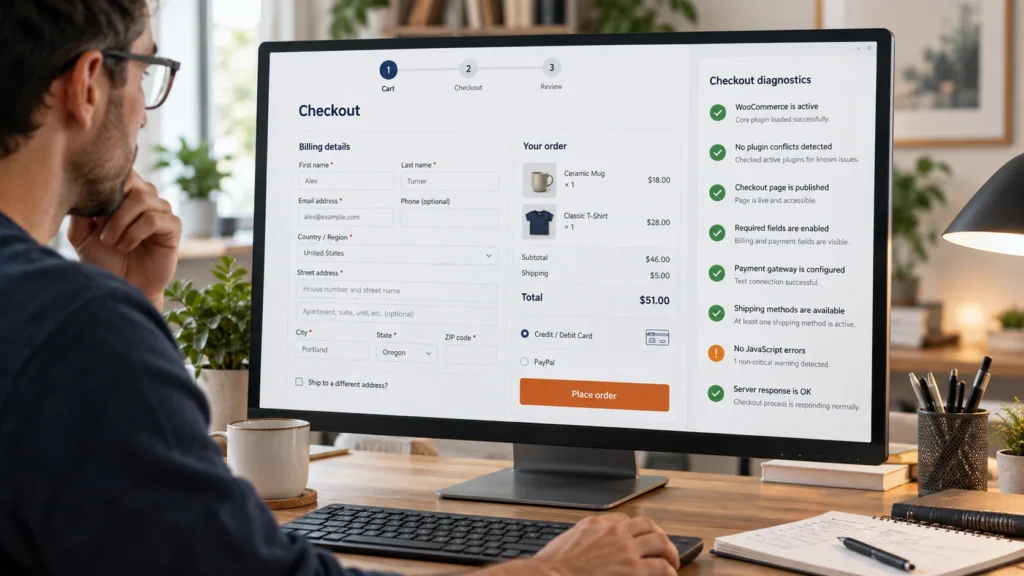
A shopper clicks Place order and nothing happens. Another sees a loading spinner. A third pays successfully but never reaches the confirmation page. All three can look like a broken WooCommerce checkout, but they need different fixes.
Start by identifying the exact failure. Avoid repeatedly charging a live card, changing several settings together or disabling payment protection on your production store. The goal is a repeatable test that tells you which part of the purchase failed.
1. Record the checkout symptom
Note the product, selected variation, delivery country, shipping method, browser, login state and time. Capture the visible message without including card details. Check whether WooCommerce created an order and whether the payment provider recorded a payment.
| Symptom | First check |
|---|---|
| Spinner never finishes | Browser errors and checkout requests |
| Payment fields are missing | Gateway configuration, scripts and supported checkout type |
| Card declined | Provider decline reason and payment logs |
| Payment exists but order stays unpaid | Webhook delivery and the matching order reference |
| Order completes but email is missing | Mail delivery, rather than checkout itself |
An order marked pending is not proof of a successful payment. Equally, a failed redirect does not prove that payment failed. Reconcile the order and provider records before retrying or changing status.
2. Reproduce the issue safely
Make a current backup and use a staging copy with the gateway’s supported test mode. Prevent the staging site from emailing real customers. Test one simple product before adding variations, coupons, shipping restrictions or subscriptions. This separates a basic checkout failure from a product-specific rule.
Keep a short test log. For example: guest checkout, standard product, no coupon, one shipping method, test card, expected paid order in the configured status. Run the same case after each change. A fix is convincing when the original case passes consistently, not when one different purchase happens to work.
3. Check JavaScript and checkout requests
Open your browser’s developer tools and reproduce the failure. Look for the first relevant Console error and failed checkout request. A blocked script, invalid response or server error can prevent the checkout from completing. Do not paste cookies, authorization headers or customer information into a public support forum.
WooCommerce documents browser errors as a troubleshooting path. Its JavaScript troubleshooting guide explains how to inspect them. The first error is often more useful than the last visible symptom.
4. Review caching and optimization rules
Check exclusions for cart, checkout and customer account pages in the caching tools you actually use. Review server caching, CDN rules and optimization plugins together. In staging, test whether delaying, combining or minifying checkout scripts changes the result. Restore any setting that makes no difference.
Do not disable all performance settings permanently. Keep the working exclusion as narrow as possible and retest the rest of the store. WooCommerce’s checkout spinner guide covers several possible causes; the symptom alone does not identify one.
5. Isolate plugin and theme conflicts
On staging, reduce the installation to WooCommerce, the required gateway and an appropriate standard theme. If the same checkout case starts working, reintroduce extensions individually. Include custom checkout fields, currency tools, shipping rules and fraud integrations in the investigation.
If the reduced setup still fails, check gateway logs, server errors, connectivity and resource limits. Give your developer the smallest reproducible case, the affected versions and the relevant sanitized log entries. That is more actionable than a screenshot saying checkout is broken.
6. Verify the complete purchase
- Guest and signed-in checkout both work.
- Variations, shipping, tax and discounts calculate correctly.
- The provider payment matches the order total and currency.
- Confirmation, receipt email and account history agree.
- A declined payment shows a useful message and does not grant paid access.
- Repeating a request does not create duplicate charges or orders.
Follow the failed request before choosing a fix
Start with the checkout type. In the WordPress page editor, check whether checkout uses the Checkout block or the classic shortcode. Keep that information beside the WooCommerce and gateway versions in your notes. A guide written for one checkout implementation may describe requests or extension behavior that the other does not use.
- Open a staging checkout in a fresh browser window and open developer tools. In Chrome or Edge, right-click the page and choose Inspect.
- Select Network and enable Preserve log so the evidence stays available if the page navigates. Clear earlier requests.
- Perform the same test purchase that produces the problem. Note the time and the action immediately before the failure.
- Inspect the checkout-related request and its response. Record a short, sanitized description rather than copying the entire request, cookies or authorization headers.
- Check Console for an error at the same point. A filename can help identify the script involved, but it does not by itself prove that the owning plugin caused the failure.
A successful HTTP response does not necessarily mean a successful purchase. Read the returned message and compare the order with the payment provider. If the response contains a validation message, investigate the named field or rule before disabling unrelated plugins. If it is an error page or server failure, compare the time with the server or gateway log.
Three decisions that prevent unnecessary changes
| What you found | Next decision |
|---|---|
| No payment and a clear field-validation message | Recheck the field value and the rule that validates it. Repeat the same case after one correction. |
| A payment exists, but checkout reports a failure | Reconcile the transaction reference with the order before trying payment again. Investigate status notification and redirect separately. |
| The order and payment agree, but no receipt arrives | Trace email generation and delivery. Do not change checkout or mark another payment merely to resend an email. |
These are diagnostic examples, not findings about your store. For instance, a customer returning to an error page may already have paid. The useful evidence is the matching transaction, not the wording on the page alone.
Keep a record another developer can use
Download the checkout incident worksheet and open it in Excel, Google Sheets or another spreadsheet app. It is a blank working template with suggested cases, not a report of tests already completed.
Record the baseline before changing anything. Then use one row per change, including changes that made no difference. Keep the checkout type, product and payment test mode the same while comparing results. If you change the browser, product and caching rule together, a passing test will not tell you which change mattered.
Before handing the issue to support, include the relevant software versions, reproduction steps, expected result, actual result and a redacted error. Explain whether it affects everyone or only a country, shipping method, account type or product. That makes a support request useful without exposing a customer’s order or payment details.
If checkout succeeds but a purchased course stays locked, continue with the LearnDash purchase-access guide. For recurring checks after updates, use the maintenance checklist.
Common questions
Should I mark a pending order complete to fix access?
Only after verifying payment and the reason it stayed pending. Completing an order can release downloads or trigger other fulfillment actions.
Can a speed plugin break checkout?
A particular optimization rule can affect required checkout scripts or dynamic responses. Test that rule on staging before attributing the failure to the whole plugin.
Need a developer to trace the failure?
Our WooCommerce customization service can investigate the purchase flow and implement a focused fix. Send the symptom and reproduction steps through our contact page. For continuing support, compare the scope of our care plans.
Conceptual editorial image created for WooCrafters; interface shown for illustration.